
Good product photos usually need a camera, lighting, a backdrop and a lot of time. Nano Banana, Google’s image model inside Gemini, lets you start from a simple phone photo and turn it into a clean listing image or a lifestyle shot.
This guide explains what Nano Banana is, how to prepare your photo, the exact workflow, prompts you can copy, and where the tool still struggles.
What is Nano Banana?
Nano Banana is the popular name for Google’s image model, officially called Gemini 2.5 Flash Image. A newer, higher-quality version called Nano Banana Pro runs on Gemini 3.
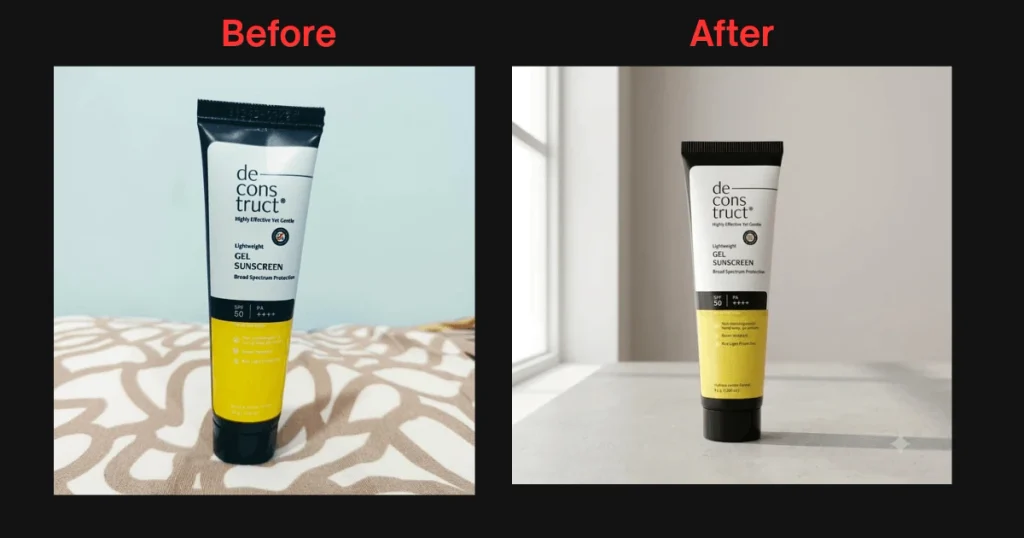
Its biggest strength for sellers is editing a real photo while keeping the product itself the same. Older AI tools often changed a product’s shape, colour or label when you asked them to change the background. Nano Banana is much better at keeping the product consistent across edits.
Start with a good base photo
The AI works from the pixels you give it, so the base photo matters more than the prompt.
- Sharp focus: tap to focus on the product before you shoot.
- Even, soft light: shoot near a window on a cloudy day or with indirect daylight.
- Space around the item: do not crop tight. Leave room so the AI can build a scene.
- Plain background: a white sheet or wall is enough.
- No coloured light: yellow bulbs or RGB lights carry into every edit and are hard to remove.
Where to use Nano Banana
| Option | Best for | Cost |
| Gemini app or gemini.google.com | Occasional product shots | Free tier available |
| Third-party editors that use the same model | Masking, batch edits, weekly store work | Usually paid |
| Gemini API | Automated catalog workflows | Pay per use |
Start with the free Gemini app. Move to other options only after you have a prompt that works.
Step-by-step workflow
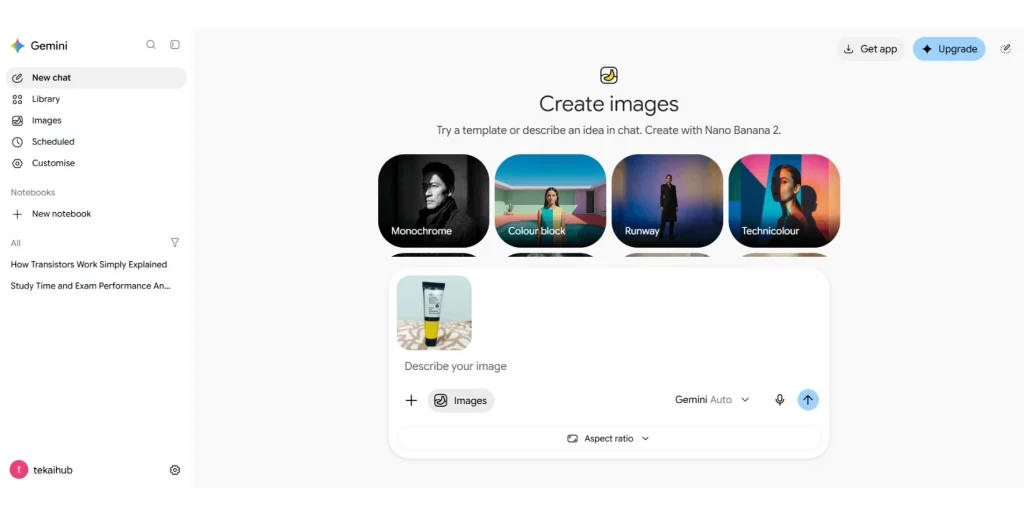
- Open Gemini at gemini.google.com or in the Gemini app.
- Choose image creation. Open the tools menu and select the image option.
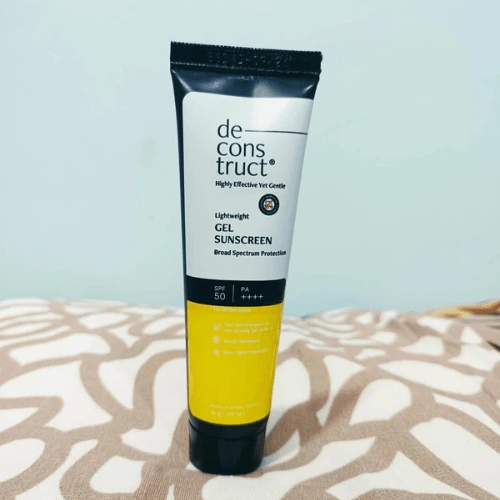
- Upload your base photo. Always upload a real photo rather than asking the AI to imagine your product.
- Describe the scene. Say what surface the product sits on, where the light comes from, and the mood you want.
- Protect the product. End every prompt with a line telling the model to keep the product’s shape, colour, label and size unchanged.
- Check the result at full size. Zoom in on text, logos, edges and proportions.
- Fix it in the same chat. Ask for small changes one at a time, such as “move the product to the centre” or “make the light warmer.”
- Download the image as PNG or JPEG. Higher tiers support higher resolutions for print and banners.
Prompts you can copy
Clean listing shot
Place this product on a plain white background with soft overhead studio lighting and a subtle natural shadow underneath. No props. Keep the product’s exact shape, colour, label and proportions unchanged.
Lifestyle shot
Place this product on a light wooden table beside a window with soft natural daylight from the left. Add a softly blurred green plant in the background. Warm, calm mood. Keep the product sharp and completely unchanged.
Seasonal banner
Place this product on a marble surface with soft golden evening light and a few out-of-focus fairy lights in the background, leaving empty space on the right for text. Do not change the product in any way.
Every good prompt has the same four parts: the surface, the light, the mood, and a product-protection line.
Fixing common problems
| Problem | What to type next |
| Props are too big | “Make the plant smaller and move it behind the product, so the product is the main focus.” |
| Product moved off-centre | “Keep everything the same but move the product to the centre of the frame.” |
| Label text looks warped | Re-upload the original and add “Do not alter or redraw any text on the label.” |
| Light looks wrong | “Match the light direction to the original photo: light from the left.” |
| Product looks the wrong size | “The product is about 10 cm tall; scale the props to match.” |
Check the image after every follow-up. Each edit can fix one thing and accidentally change another.
Where Nano Banana still struggles
- Size and scale: the model guesses proportions visually. Give real sizes in your prompt.
- Fine details: cords, chains, seams, screws and woven textures can be simplified or blurred.
- Text and logos: small print can warp. Always check at 100% zoom.
- Watermarks: Google adds an invisible SynthID watermark to AI images, and some outputs show a visible mark.
For marketplace listings, also check each platform’s rules on AI-edited product images. The image must still show the real product accurately.
Nano Banana vs other tools
Flux Kontext is another strong AI image editor and does well on some tasks. Nano Banana is generally rated better at keeping the same product and scene consistent over several edits.
Dedicated e-commerce photo tools offer guided templates for catalog shots. They are faster for bulk work but cost more and give you less creative control.
Editing a whole catalog
- Write one template prompt with a gap for the product name, such as “Place this [product] on a plain white background…”.
- Use the same background, light and angle for every product.
- Save your best prompts in a text file so every listing matches.
- Use batch tools only after the template works on a few single products.
A consistent catalog makes a small shop look like an established brand.
Tips by product type
- Flat, simple items (books, boxes, bottles): easiest to edit well.
- Jewellery and small items: shoot close and sharp; flat lays give the AI less depth to guess.
- Products with text or logos: zoom in and compare with the original every time.
- Items with cords, hinges or moving parts: expect to retouch a few areas manually.
Is the paid tier worth it?
The free Gemini tier is enough for occasional product shots. Consider Google’s paid AI plans if you need high-resolution images for print and banners, or you create dozens of images every week.
Fix your base photos and prompts first. Better inputs improve results more than upgrading does.
Common mistakes
- Starting from a blurry or tightly cropped photo
- Vague prompts such as “make it look professional”
- Forgetting the product-protection line
- Accepting the first result without checking details
- Asking for light from the right when the original light came from the left
- Uploading huge uncompressed files instead of resizing first
Frequently asked questions
Is Nano Banana free?
Yes. You can use it in the free Gemini app with a Google account. Paid Google AI plans give higher limits and access to Nano Banana Pro.
Can I use Nano Banana images on Amazon, Flipkart or Etsy?
Usually yes for lifestyle images, but check each marketplace’s current image rules. Main listing images often need a plain white background and must show the actual product accurately.
Why does the AI change my product’s label?
Small text is hard for image models. Add “do not alter any text on the label” to your prompt and start from a sharp, well-lit photo.
How long does one image take?
Generation takes seconds. Getting a result you are happy with often takes a few rounds of small edits.
Final thoughts
Nano Banana makes good product photos possible with a phone and a free Google account. Start with one product, try two or three prompts, and save the one that works as your template.
Once your template is ready, creating a new product image becomes a quick, repeatable task.