
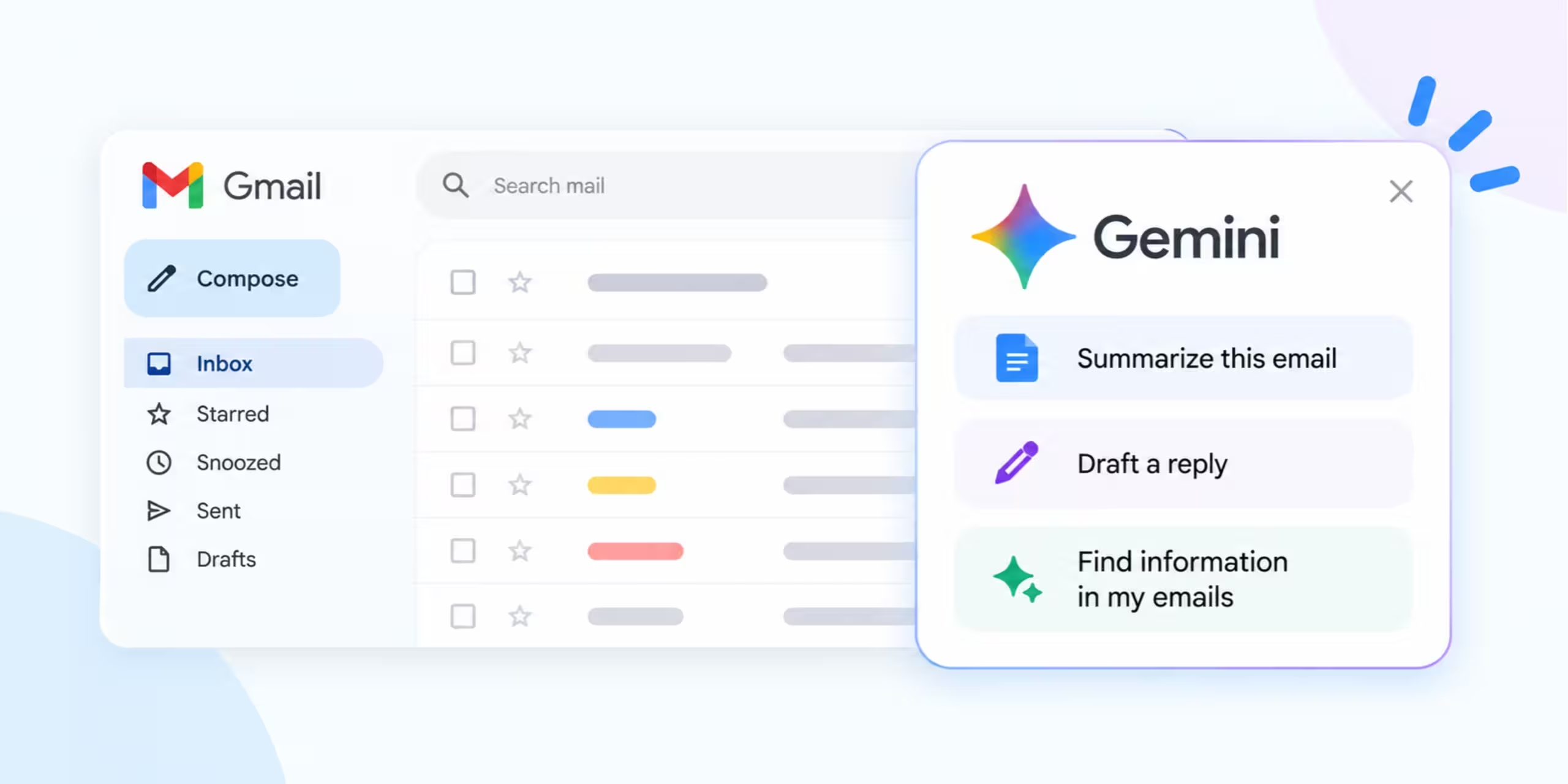
Gemini in Gmail is Google’s built-in AI assistant that lives right inside your inbox. It can draft emails for you, summarize long threads, answer questions about past messages, and even help organize your inbox, all without leaving Gmail.
In January 2026, Google announced that Gmail was entering what it calls the “Gemini era.” Several features that were once limited to paid users, such as Help Me Write and thread summaries, began rolling out to everyone at no cost. Newer features like AI Inbox and natural-language inbox questions arrived for subscribers and testers.
If you spend a lot of time reading and replying to email, learning these tools can save you real time every day. In this guide, you will learn what Gemini in Gmail can do, how to turn it on, and how to use each feature step by step. We also cover practical prompts you can copy, privacy settings, and answers to common questions.
Who Can Use Gemini in Gmail?
What you can use depends on two things: your account type and where you live. Google says users with a paid Google AI plan (Plus, Pro or Ultra) or an eligible Google Workspace plan get some features worldwide, while free personal Gmail accounts currently get most features only in the US.
Here is a quick overview of the main features and who can use them, based on Google’s Gmail Help page:
| Feature | What it does | Free personal Gmail | Google AI Plus / Pro / Ultra | Google Workspace |
| Conversation summaries | Summarizes long email threads when you open them | Yes, global (8 languages) | Yes, global | Yes, global |
| Help Me Write | Drafts new emails or rewrites your text | Yes, US only | Yes, global | Yes, global |
| Suggested Replies | Context-aware, one-click replies | Yes, US only (English) | Yes, global (English) | Yes, global (English) |
| Proofread | Checks tone, clarity and style beyond grammar | No | Yes (English) | Yes (English) |
| AI Overview in search | Answers questions about your inbox in plain language | No | Yes, US only (English) | Yes, US only (English) |
| AI Inbox | Shows top priorities and to-dos | No | Yes, US only (English) | No |
| Gemini side panel | Chat with Gemini about emails, Drive files and Calendar | No | Being phased out in the US | Yes, global |
A few important notes:
- Readers outside the US (for example in India, the UK or Australia) on a free account will usually see conversation summaries first. Other free features are expanding region by region.
- Work or school accounts follow the rules your Google Workspace admin sets. If your admin has not turned Gemini on, you will not see it.
- Features change often. Google rolls out updates gradually, so check the official Gmail Help page for the latest list.
How to Turn On Gemini in Gmail
You do not need to install anything. Gemini is already built into Gmail on eligible accounts. You just need the right settings switched on.
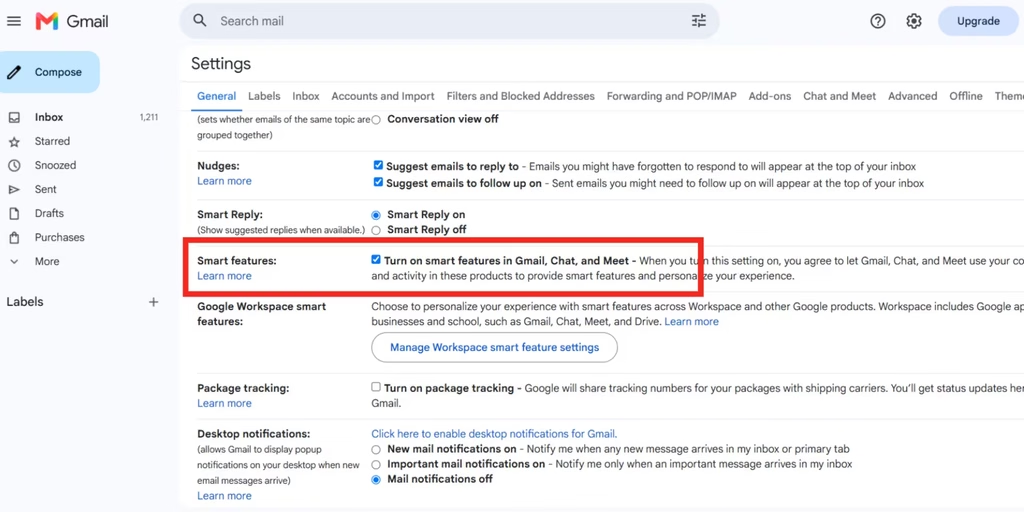
- Open Gmail on your computer and click the Settings gear icon at the top right, then choose See all settings.
- Go to the General tab and find the smart features options.
- Turn on smart features in Gmail, Chat and Meet, and save your changes. Gemini depends on these settings, so it will not appear while they are off.
- Reload Gmail. Look for the Help Me Write button when you compose an email, or a summary card at the top of long email threads.
On the Gmail app for Android or iPhone, update the app to the latest version first. The same account-level smart features settings apply, so once they are on, Gemini features show up in the app too.
Why don’t I see Gemini in Gmail?
If Gemini is still missing, the usual reasons are:
- The feature has not reached your country or language yet.
- You are on a work or school account and your admin has not enabled it.
- Smart features are turned off in your settings.
- The feature you want needs a paid Google AI plan (see the table above).
How to Use Each Gemini Feature in Gmail
Below is a step-by-step walkthrough of the features most people will use every day.
1. Write emails with Help Me Write
Help Me Write creates a full email draft from a short instruction, or improves text you have already typed.
- Click Compose, or open a reply or an existing draft.
- Type your request in the prompt bar at the bottom of the compose window. If you don’t see it, click the Help me write button.
- Click Create to generate the draft.
- Polish it with the quick buttons: Formalize, Friendly or Shorten. You can also type a new instruction, such as “Mention the Friday deadline.”
- Use the Undo and Redo arrows to switch between versions, then edit and send.
Google notes that Help Me Write can pull useful details, like booking codes or schedules, from your other emails and Drive files. Click Sources to see what it used. Always read the draft before sending, because AI can get details wrong.
2. Catch up fast with conversation summaries
When you open a long email thread, Gemini can show an AI Overview at the top. It lists the key points and decisions so you don’t have to scroll through every reply. This is available to free users worldwide in eight languages, including English. Just open a long thread and look for the summary card.
3. Reply in one click with Suggested Replies
Suggested Replies is the upgraded version of Smart Reply. At the bottom of an email, Gemini offers longer, context-aware replies that sound like you. Pick one, edit it if needed, and send.
4. Polish your writing with Proofread
Proofread (Google AI plans and Workspace) goes beyond spelling. It suggests changes for tone, clarity and conciseness. Use it on important emails, such as job applications or client messages, before you hit send.
5. Ask your inbox questions
With a Google AI Plus, Pro or Ultra plan (or eligible Workspace plan in the US), you can type a natural question into the Gmail search bar. For example: “When does my flight to Delhi land?” Gemini shows an AI Overview with the answer above your search results, pulled from your emails.
6. Prioritize with AI Inbox
AI Inbox gives you a short briefing of what matters most, such as bills due soon, appointments and requests from people you email often. It is currently available to Google AI Plus, Pro and Ultra subscribers in the US, in English.
7. Use the Gemini side panel (Workspace)
On eligible Google Workspace accounts, click Ask Gemini at the top right of Gmail to open a side panel. From there you can:
- Summarize a thread or list action items
- Draft emails using information from your inbox
- Find details like package arrival dates or flight times
- Archive, label, star or delete groups of emails (Gemini asks you to confirm first, and you get 60 seconds to undo)
- Check your Google Calendar or schedule a meeting
- Pull in Google Drive files as sources by typing @
Google says it is moving paid personal subscribers in the US away from the side panel toward built-in features like AI Overviews and Help Me Write, so the panel is mainly a Workspace tool now.
15 Practical Prompts You Can Try Today
The more specific your prompt, the better the result. Mention who you are writing to, what you want, and the tone. Here are ready-to-use examples for everyday situations.
For work emails (Help Me Write)
- “Write a polite email to my manager asking for leave on Monday and Tuesday for a family function.”
- “Decline Thursday’s meeting politely and suggest Friday afternoon instead.”
- “Write a short follow-up to a client who hasn’t replied to my quote from last week.”
- “Turn these notes into a formal project update: design done, testing next week, launch on the 20th.”
- “Write a thank-you email to the interview panel. Keep it under 100 words.”
For personal emails
- “Invite my friends to a birthday dinner on Saturday at 8 pm. Keep it casual and fun.”
- “Write an email to my child’s teacher explaining she was absent yesterday due to a fever.”
- “Ask my landlord, in a friendly but firm tone, to fix the leaking kitchen tap this week.”
For customer service and complaints
- “Write a complaint about a late delivery of order number [your order number]. Ask for a refund or replacement.”
- “Ask my internet provider to explain an extra charge on this month’s bill.”
For summaries and search (side panel or AI Overview)
- “Summarize this thread and list my action items.”
- “Explain this email in simple words.”
- “When is my next package arriving?”
- “What did the plumber quote for the bathroom work?”
- “Show my unread emails from this week.”
Tip: After Gemini creates a draft, refine it with follow-up instructions like “make it shorter,” “sound more confident,” or “add a clear call to action.”
Tips, Limitations and Privacy
Tips for better results
- Be specific. “Write a formal invitation to a business partner for our launch on 15 November” works far better than “write an invite.”
- Name the email or file. If you want facts from a past message, mention it, for example “the Q4 report email from last week.”
- Always review before sending. Check names, dates, numbers and tone. You are responsible for what you send.
- Add your personal touch. A quick edit makes AI drafts sound more natural and less generic.
Limitations to keep in mind
- Gemini can make mistakes or miss context, so don’t rely on it for medical, legal or financial advice.
- Many features are still US-only and English-first for free accounts.
- In the side panel, Gemini cannot create new labels, mark emails as spam in bulk, or process requests matching more than 10,000 threads.
Is Gemini in Gmail safe and private?
Google says it does not use your personal Gmail content to train its Gemini models. Gemini processes your emails only to give you summaries, drafts and answers when you use these features. Conversations in the Gemini side panel are not saved to your Gemini Apps Activity.
If you share sensitive information by email, such as passwords, ID numbers or bank details, it’s still wise to avoid asking AI tools to work with it.
How to turn off Gemini in Gmail
Gemini features are tied to Gmail’s smart features settings and can’t be switched off one by one. To turn them off:
- Click Settings > See all settings in Gmail.
- On the General tab, find the smart features options.
- Turn off smart features in Gmail, Chat and Meet, then save.
Note that this also turns off other helpful extras, such as automatic package tracking and some calendar integrations.
Frequently Asked Questions
Is Gemini in Gmail free?
Partly. Conversation summaries are free worldwide. Help Me Write and Suggested Replies are free for personal accounts in the US. Proofread, AI Overviews in search and AI Inbox need a Google AI Plus, Pro or Ultra plan.
Can I use Gemini in Gmail in India?
On a free personal account, you can currently use conversation summaries. Paid Google AI and Workspace plans unlock more features globally, including Help Me Write. Google says it is expanding to more countries gradually.
Does Gemini send emails on its own?
No. Gemini drafts text, but you decide whether to edit and send it. Bulk actions in the side panel, like deleting or archiving, also need your confirmation.
Does Google read my emails to train Gemini?
Google states it does not use your personal Gmail content to train its Gemini models.
Does Gemini work in the Gmail mobile app?
Yes. Help Me Write, conversation summaries, Suggested Replies and AI Inbox work on Android and iPhone where available. Proofread is currently web-only.
Can I write emails in languages other than English?
Help Me Write supports English, French, German, Italian, Japanese, Korean, Portuguese and Spanish. Suggested Replies and Proofread are English-only for now.
Conclusion
Gemini in Gmail turns your inbox into a helpful writing and organizing assistant. Start with the free features: let conversation summaries catch you up on long threads, and use Help Me Write or Suggested Replies (where available) to answer emails faster. If you handle a lot of email for work, a Google AI or Workspace plan adds Proofread, inbox questions and AI Inbox.
The key is to treat Gemini as a helper, not a replacement. Give clear prompts, review every draft, and add your own voice. Used this way, it can save you minutes on every email and hours every week.
Have you tried Gemini in Gmail yet? Share your favorite prompt or tip in the comments below.