
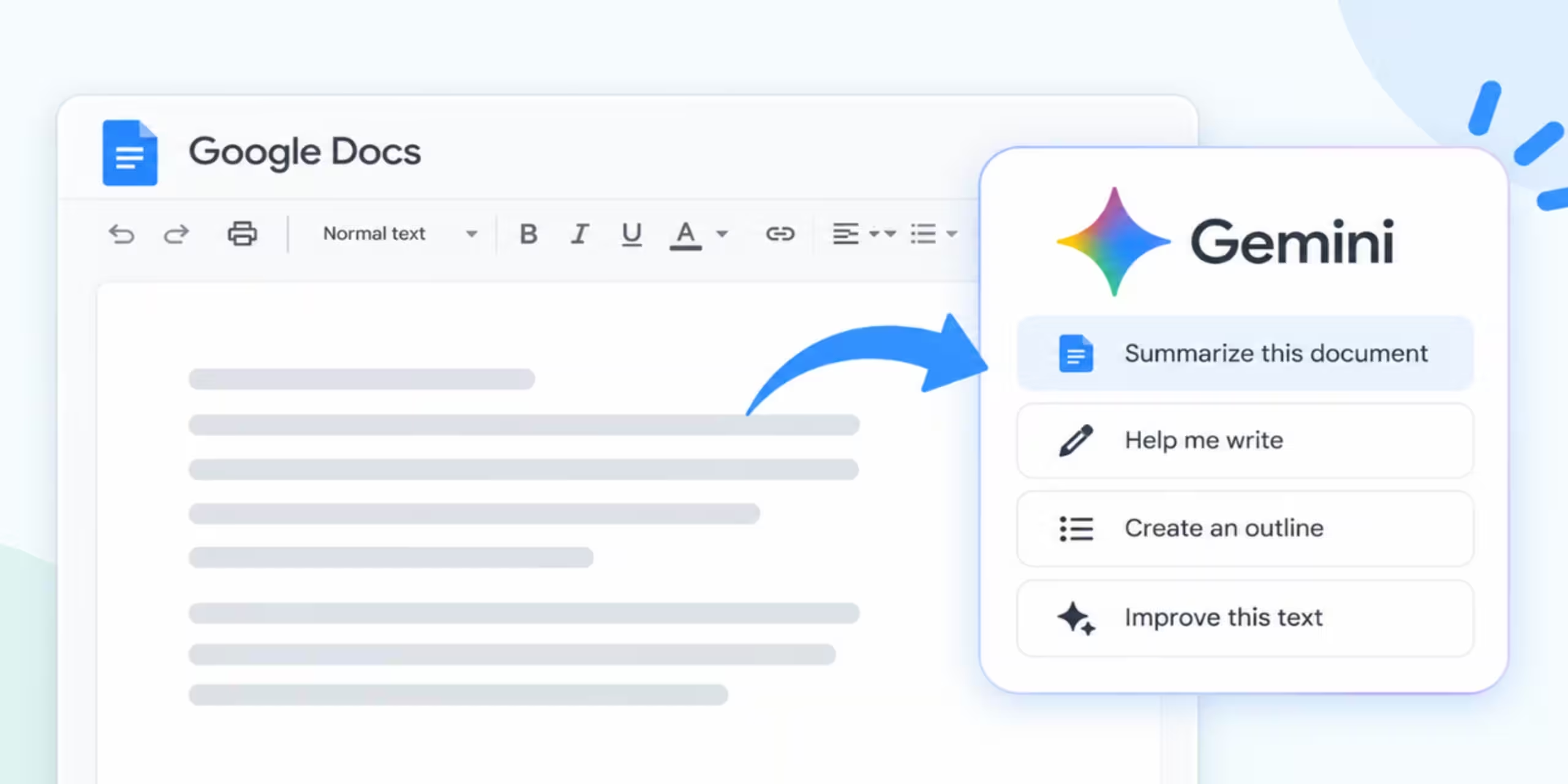
Google Docs is already a popular tool for writing documents, reports, notes, and articles. With Gemini built into Docs, you can now use AI while working on the document itself.
Gemini can help you draft new content, rewrite paragraphs, shorten text, summarize documents, organize information, work with selected files, and create images. The exact features available to you depend on your Google account, plan, language, and Workspace setup.
This guide explains how to use Gemini in Google Docs, what you can do with it, useful prompts, and what to check if Gemini does not appear in your account.
What Is Gemini in Google Docs?
Gemini in Google Docs is Google’s AI assistant for supported Google Docs users.
Instead of copying text from Docs into a separate AI chatbot, you can ask Gemini to work with the document while you are editing it.
For example, you can ask Gemini to:
- Draft a new section
- Rewrite selected text
- Shorten a paragraph
- Expand an explanation
- Change the tone
- Summarize a document
- Create bullet points
- Use information from selected Drive files
- Generate images
- Suggest improvements to your writing
Google currently lists these capabilities as part of Gemini in Docs, although access depends on an eligible Google Workspace or Google AI plan.
How to Access Gemini in Google Docs
The easiest way to start is through Google Docs on a computer.
Step 1: Open Google Docs
Go to Google Docs and open a document.
You can use an existing document or create a new one.
Step 2: Look for Ask Gemini
If your account has access, you should see Ask Gemini in Google Docs.
Select it to open the Gemini interface.
Step 3: Enter your request
Type a prompt describing what you want Gemini to do.
For example:
Write a short introduction for a beginner’s guide to artificial intelligence.
Press Enter to submit the request.
Step 4: Review the response
Read the generated result before inserting or accepting it.
Depending on the workflow, you can insert generated text into your document or ask Gemini for another version. Google also provides options for reviewing and accepting or rejecting suggested changes.
What Can You Use Gemini for in Google Docs?
Gemini can assist with several parts of the writing process.
1. Draft new content
You can start with a simple description of what you need.
For example:
Write a 500-word introduction to a report about renewable energy.
You can then review the draft and make your own changes.
2. Rewrite existing text
Have a paragraph that sounds awkward?
Select the text and use Gemini’s refinement options.
Google currently provides options such as Rephrase, Shorten, Elaborate, More formal, More casual, Bulletize, and Summarize, depending on the available feature set.
3. Summarize documents
If you are dealing with a long document, Gemini can create a shorter version that highlights the main information.
For example:
Summarize this document in seven bullet points.
You can also select a particular section and ask Gemini to summarize only that content.
4. Improve the tone
You can ask Gemini to change how your writing sounds.
For example:
Rewrite this email so it sounds professional and friendly.
Or:
Make this paragraph easier for a beginner to understand.
5. Turn text into bullet points
Long paragraphs are sometimes difficult to scan.
You can ask:
Convert this section into five concise bullet points.
This can be useful for reports, meeting notes, project documents, and study material.
6. Create images
Gemini can generate images inside Google Docs when the feature is available for your account.
For example:
Create an illustration of a student studying with a laptop and digital notes.
You can then review the generated image and insert an option into your document.
How to Write a Document With Gemini
You can use Gemini to create a first draft when you are starting with a blank document.
Open a new Google Doc and provide a detailed description.
For example:
Create a project proposal for a small business website redesign. Include project goals, proposed features, timeline, deliverables, and next steps.
A more detailed prompt gives Gemini more context.
You can include:
- What you want to create
- Who will read it
- Desired length
- Tone
- Important sections
- Information that must be included
- Preferred format
Google recommends giving Gemini clear instructions about the task you want it to perform.
A Simple Prompt Formula for Gemini in Docs
A useful prompt can follow this structure:
Task + context + audience + format + requirements
For example:
Write a 700-word guide about using AI for content research. The audience is beginner bloggers. Use simple English, clear headings, short paragraphs, and practical examples.
Compare that with:
Write about AI.
The second prompt leaves many decisions to Gemini.
The first gives it a much clearer target.
How to Rewrite Text With Gemini
Suppose you have already written a paragraph but want to improve it.
Highlight the paragraph and choose the available Gemini refinement option.
You can ask Gemini to:
- Rephrase it
- Make it shorter
- Add more detail
- Make it more formal
- Make it more casual
- Turn it into bullets
- Summarize it
For example:
Rewrite this paragraph using simpler language without changing the meaning.
Review the result before replacing your original text. Google provides controls for accepting or rejecting suggested changes.
How to Summarize a Google Doc With Gemini
Gemini can help when a document contains more information than you need at the moment.
Open the document and ask:
Summarize this document in five bullet points.
For a more detailed response:
Summarize this document by section. Give me the main idea and two important details for each section.
You can also focus on selected text:
- Highlight the relevant section.
- Open Gemini.
- Ask for a summary.
- Review the result.
- Insert it if it is useful.
Google’s current Docs instructions specifically support summarizing the document or selected text through Gemini.
How to Use Gemini With Google Drive Files
One useful feature is the ability to give Gemini specific files as sources.
Suppose you are preparing a project report and have meeting notes saved in Google Drive.
You can ask:
Update the project timeline using the information in my latest meeting notes.
You can add the relevant Drive file as a source.
Google says sources can help Gemini find information, summarize files, and compare information between multiple files.
This can save time when information is spread across several documents.
How to Add a File as a Source
Depending on your available Gemini interface:
- Open the Gemini area in Google Docs.
- Select Sources.
- Choose the option to add a file.
- Select the relevant file from Drive.
- Include an instruction explaining how Gemini should use it.
For example:
Use the meeting notes to update the project status section.
You should still check the generated result against the original file.
Google specifically warns that Gemini can sometimes produce incorrect information or misrepresent which sources contributed to an answer.
15 Useful Gemini Prompts for Google Docs
You can adapt these prompts for different writing tasks.
1. Create an introduction
Write a clear introduction for an article about AI tools for small businesses.
2. Improve a paragraph
Rewrite this paragraph to make the explanation clearer while keeping the original meaning.
3. Shorten content
Reduce this section by about 40% without removing the important information.
4. Expand an explanation
Expand this section with a simple example that helps beginners understand the topic.
5. Change the tone
Rewrite this section in a professional but conversational tone.
6. Create bullet points
Convert this section into six concise bullet points.
7. Summarize the document
Summarize this document in 10 short bullet points.
8. Create an outline
Create an outline for a 1,500-word beginner guide about AI automation.
9. Draft an email
Write a professional email explaining the updated project deadline to a client.
10. Simplify technical content
Explain this section in simple English for someone without a technical background.
11. Improve grammar
Review this text for grammar, spelling, clarity, and awkward sentences.
12. Create a checklist
Turn the instructions in this document into a practical checklist.
13. Find repetitive content
Identify sections that repeat the same information and suggest how to combine them.
14. Create FAQs
Create eight frequently asked questions based on the information in this document.
15. Write a conclusion
Write a concise conclusion that summarizes the main points without repeating the introduction.
How to Use Gemini for Blog Writing
Gemini can help with different stages of creating a blog post.
You could start with:
Create an outline for a 1,500-word article about how beginners can use AI for social media marketing.
Once the outline looks useful, work on individual sections.
For example:
Write the section about using AI to create social media ideas. Use simple English and include three practical examples.
This gives you more control than asking Gemini to generate an entire article in one step.
For publishing, add your own research, examples, screenshots, experience, and sources. Always review AI-generated information before publishing it.
How to Use Gemini to Edit an Article
You can also use Gemini after writing the first draft.
For example:
Review this article and identify sections that are unclear or repetitive.
Then ask about individual problems:
Rewrite the introduction so the main answer is clear in the first paragraph.
Or:
Find sentences that contain unnecessary repetition and suggest shorter alternatives.
This allows you to improve the article without handing the entire editing process to AI.
How to Use Gemini for Research in Google Docs
Gemini can work with information from sources available to it, including selected files and, in supported workflows, web information.
If you want Gemini to use web information, Google’s current instructions say to include phrases such as “Use Google Search” or “Using web search” in the prompt.
For example:
Using web search, write a short overview of the latest developments in electric vehicles.
For important research, check the underlying sources yourself. An AI-generated answer should not automatically be treated as verified information.
How to Generate Images in Google Docs
You can create an image through Gemini when image generation is available in your account.
Open Gemini in Docs and describe the image.
For example:
Create a clean illustration of a person organizing business documents with AI.
After Gemini generates an image, you can review it and insert a suitable result into the document. You can also modify the prompt to generate additional options.
For blog posts, you can be more specific:
Create a simple horizontal illustration showing a blogger using AI to research an article, with a laptop, notes, and a clean modern workspace.
Can Gemini Create Other Google Workspace Files From Docs?
Some current Gemini in Docs workflows can create other types of Workspace content.
Google documents the ability to generate a Google Sheets spreadsheet from a prompt and create an editable Google Slides presentation from Docs. Feature access depends on your account and available Gemini features.
For example:
Create a Google Sheets project tracker with columns for task, owner, deadline, status, and notes.
Or:
Create an editable presentation explaining the basics of artificial intelligence to a beginner audience.
This can be useful when a project involves documents, spreadsheets, and presentations.
Gemini in Google Docs for Students
Students can use Gemini for tasks such as:
- Summarizing study material
- Simplifying difficult explanations
- Creating revision notes
- Building outlines
- Improving grammar
- Creating practice questions
- Organizing research notes
- Turning paragraphs into bullet points
However, students should follow their school’s or instructor’s AI policy.
If an assignment requires original work, do not assume that AI-generated text can be submitted without permission.
Gemini in Google Docs for Work
For work-related documents, Gemini can help with tasks such as:
- Project proposals
- Meeting summaries
- Business reports
- Internal announcements
- Email drafts
- Project plans
- Marketing documents
- Research summaries
- Client communications
You can also use relevant files as sources when your account supports that feature.
Why Don’t I Have Gemini in Google Docs?
If you cannot find Ask Gemini, there are several possible reasons.
Your account may not be eligible
Google says Gemini in Docs requires an eligible Google Workspace or Google AI plan.
Your organization may control access
If you use a work or school account, your administrator may control which Gemini features are available.
Your language may not be supported
Google provides a list of supported languages for Workspace with Gemini, and availability can vary.
The feature may still be experimental
Some Gemini features are available through Google Workspace Experiments for eligible personal accounts rather than the standard Docs experience.
How to Get Better Results From Gemini
Good prompts can make the output much easier to work with.
Give Gemini a clear task
Use an action such as:
- Write
- Summarize
- Rewrite
- Compare
- Explain
- Organize
- Shorten
- Expand
Explain who the content is for
For example:
Explain this topic for a beginner.
Specify the format
You can request:
Use five bullet points.
Or:
Present the information as a three-column table.
Include a length
Instead of saying “write a detailed explanation,” try:
Explain this in approximately 200 words.
Provide relevant sources
If you have important information in another Drive file, add it as a source rather than expecting Gemini to know which document you mean.
Review the response
Gemini can make mistakes. Google recommends reviewing generated content, and its documentation notes that AI-generated responses may be inaccurate.
Common Mistakes to Avoid
1. Using extremely short prompts
A prompt such as “write this better” gives Gemini little direction.
Explain what you want to change.
2. Accepting generated content without checking it
AI can produce incorrect information, even when the writing sounds convincing.
Check important facts before using them.
3. Providing too little context
Tell Gemini who the audience is and what the document is supposed to achieve.
4. Asking for everything at once
For large projects, break the work into smaller tasks.
5. Ignoring the original sources
If Gemini uses your Drive files or other sources, compare important claims against the source material.
6. Assuming every feature is available
Gemini features vary by account and plan, so the interface shown in another tutorial may not exactly match yours.
Is Gemini in Google Docs Safe for Work Documents?
Google states that Workspace data remains subject to its existing privacy commitments. For users with Google AI plans, Google says content used by Gemini in supported Workspace applications is not used to train or improve Gemini or other generative AI models without permission.
However, you should still follow your organization’s policies when handling confidential information.
If you work with sensitive business data, check your company’s rules before adding information to an AI feature.
Final Thoughts
Gemini can make Google Docs more useful when you need help with writing, editing, summaries, research, or document organization.
You can use it to create a first draft, improve a paragraph, summarize a long document, work with information from Drive files, or generate an image without leaving Docs.
The quality of the result depends heavily on the instructions you provide. Give Gemini enough context, specify the format and audience, and review the result before using it.
For important documents, keep the final review in your hands. Gemini can speed up parts of the writing process, but you should still check facts, sources, tone, and accuracy before sharing or publishing the document.
Quick Start
To use Gemini in Google Docs:
- Open Google Docs.
- Open or create a document.
- Select Ask Gemini if it is available.
- Describe what you want Gemini to do.
- Review the response.
- Insert or accept useful content.
- Edit the result to match your needs.
- Verify important information before using the final document.