
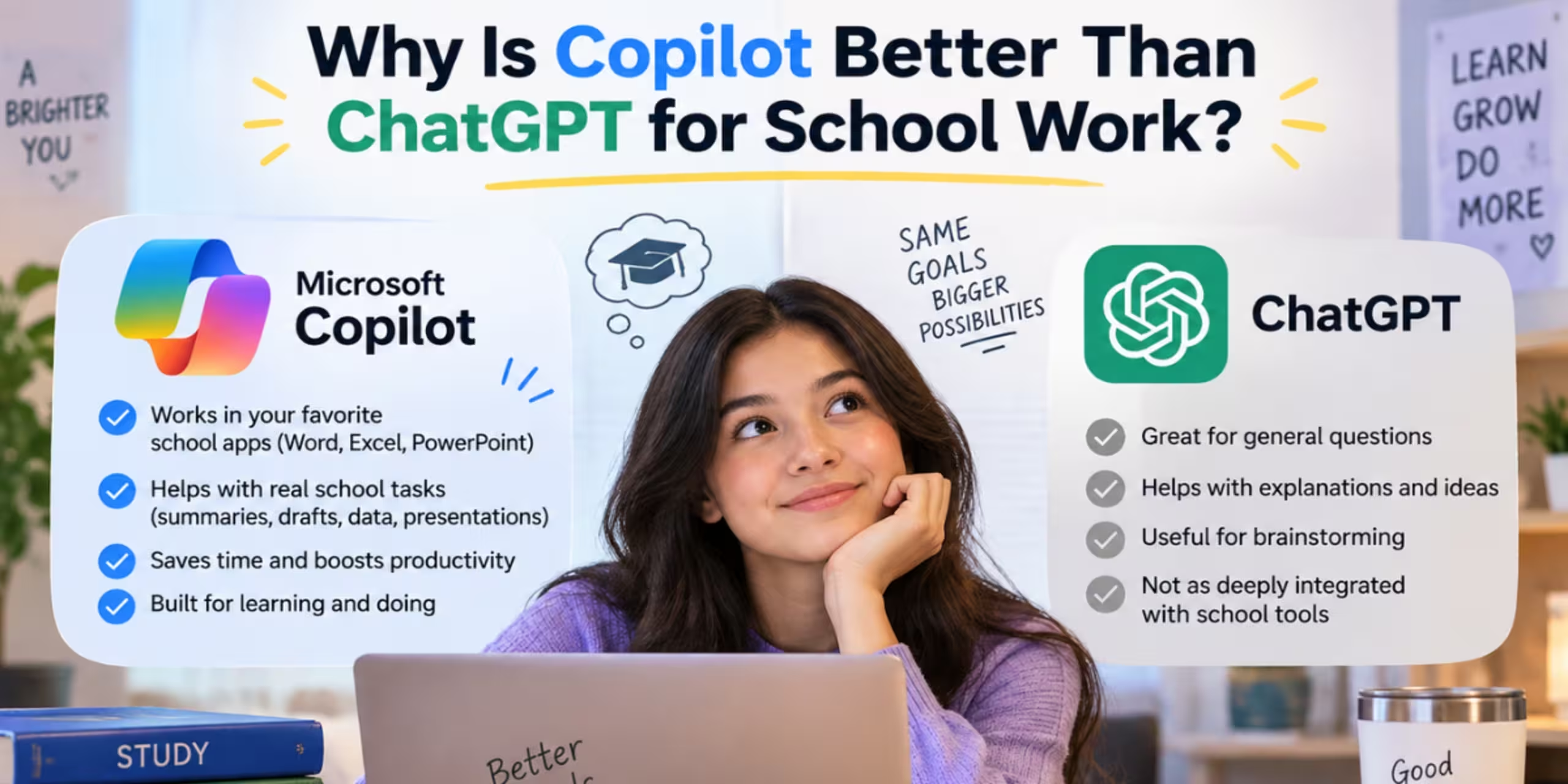
Microsoft Copilot and ChatGPT can both help students with schoolwork, but they are useful in different situations.
Copilot can be especially useful when your work already lives inside Microsoft tools such as Word, PowerPoint, Excel, or other Microsoft 365 services. ChatGPT can be useful when you want an interactive explanation, study plan, practice questions, or feedback that adapts to your follow-up questions.
There is no single tool that is best for every school task. The better choice depends on what you’re trying to accomplish, which apps you already use, what access your school provides, and your teacher’s AI policy.
This guide compares Copilot and ChatGPT by common student tasks so you can choose the right tool without treating either one as a replacement for learning.
Copilot vs ChatGPT: Quick Answer
If you already do most of your schoolwork in Microsoft 365, Copilot can fit naturally into your workflow. Microsoft currently offers education-focused Copilot experiences, including the Study and Learn Agent, which is designed to help learners understand, practice, and master material rather than simply provide finished answers.
If you want a conversational study partner that can explain a difficult concept in different ways, create practice questions, help organize your study plan, or give feedback on your work, ChatGPT can be a useful option.
For many students, the practical answer isn’t choosing one permanently.
You can use the tool that fits the specific task.
What Is Microsoft Copilot?
Microsoft Copilot is Microsoft’s family of AI experiences. What you can access depends on the Copilot product, account, subscription, and whether your school or institution provides Microsoft services.
For students using Microsoft 365, the major advantage is integration with the Microsoft ecosystem.
Depending on the available product and account, Copilot can support tasks involving documents, presentations, spreadsheets, research, writing, and other productivity workflows.
Microsoft also offers a Study and Learn Agent specifically designed for education. Microsoft describes it as a learning-focused experience that uses guided conversations and activities such as quizzes, flashcards, matching exercises, and fill-in-the-blank activities. It is intended to keep the learner involved rather than simply produce an answer.
That distinction matters.
“Copilot” isn’t one identical experience for every student, so check which version your school account actually provides before assuming a feature is available.
What Is ChatGPT?
ChatGPT is a conversational AI tool that can help students with learning, writing, brainstorming, research preparation, study planning, and other academic tasks.
OpenAI’s current higher-education materials describe student uses including learning course material, turning readings and notes into study materials, improving academic work, planning projects and exams, and developing reusable study skills.
One of its useful characteristics for studying is the conversational workflow.
Instead of stopping after the first answer, you can ask:
“Explain that more simply.”
Then:
“Give me another example.”
Then:
“Quiz me on this without showing the answers.”
That makes the interaction useful for subjects where you need to build understanding rather than simply obtain information.
Copilot vs ChatGPT for School Work
| School task | Copilot | ChatGPT |
| Understanding difficult concepts | Useful | Strong conversational option |
| Step-by-step explanations | Useful | Strong |
| Writing and editing | Strong, especially in Microsoft workflows | Strong |
| Word documents | Strong Microsoft 365 integration | Useful with uploaded files |
| PowerPoint presentations | Strong Microsoft workflow | Useful for planning and content |
| Excel work | Strong Microsoft workflow | Useful for explaining formulas and analysis |
| Study plans | Useful | Strong conversational planning |
| Practice questions | Available in education-focused experiences | Strong use case |
| Flashcards | Available in Study and Learn | Can create them through prompts |
| Research assistance | Useful | Useful |
| Source checking | Still required | Still required |
| Brainstorming | Strong | Strong |
| Learning through conversation | Useful | Strong |
| Working with uploaded material | Depends on product/account | Available with supported uploads/features |
| Best choice for | Microsoft-centered workflows | Flexible study and conversation |
This table is a practical comparison, not a permanent ranking. AI products change frequently, and feature availability can depend on your account, subscription, school, region, and product version.
When Copilot May Be More Useful for School Work
1. You Already Use Microsoft 365
If your school uses Microsoft 365 heavily, Copilot can make sense because your work may already be inside Microsoft’s ecosystem.
For example, you might be working on:
- A Word essay
- A PowerPoint presentation
- An Excel spreadsheet
- Notes stored in Microsoft services
Keeping AI assistance close to the tools you already use can reduce unnecessary switching between applications.
Microsoft describes Copilot for education as supporting workflows across products such as Word, Excel, PowerPoint, Outlook, Teams, and OneNote, although the exact features depend on the product and account.
2. You’re Creating a Presentation
Copilot can be particularly relevant when your assignment involves PowerPoint and other Microsoft 365 tools.
Instead of writing your ideas in one application, moving them to another, and then creating slides separately, an integrated workflow can make the process more convenient.
But don’t let the AI decide the entire presentation for you.
You should still determine:
- The main argument
- Which evidence matters
- Which sources are reliable
- What your audience needs to understand
- Whether the slides actually support your assignment
AI can help with production. You still need to control the academic content.
3. Your Work Is Already in Microsoft Documents
If you are working from a Word document, spreadsheet, or other supported Microsoft file, an integrated Copilot workflow can be useful.
For example, you might ask for:
- A summary of a document
- A clearer structure
- Possible improvements
- A list of questions to investigate
- Help understanding spreadsheet information
The exact capabilities depend on the Copilot product you have access to.
When ChatGPT May Be More Useful for School Work
1. You Need a Concept Explained Differently
One of the simplest ways to use ChatGPT for studying is to ask for multiple explanations.
For example:
Explain photosynthesis for an 8th-grade student.
Then:
Explain it using an everyday example.
Then:
Give me five questions to test whether I understand it.
Then:
Ask me the questions one at a time without giving me the answers immediately.
The value comes from the interaction rather than accepting the first response.
2. You Need a Study Plan
ChatGPT can help you turn a large amount of material into a structured study plan.
For example:
I have seven days before my biology exam. I need to review three chapters. Create a daily study plan with review sessions and practice questions.
You can then adjust it:
I only have 45 minutes on weekdays. Revise the plan.
The ability to continue the conversation makes this type of planning practical.
3. You Want Practice Questions
You don’t always need AI to give you answers.
You can ask it to create:
- Multiple-choice questions
- Short-answer questions
- Flashcards
- Practice tests
- Vocabulary quizzes
- Step-by-step problems
For example:
Create 15 practice questions about cellular respiration. Start with easy questions and gradually increase the difficulty. Don’t show the answers until I respond.
This turns AI from an answer generator into a practice tool.
4. You Need Feedback on a Draft
You can also use ChatGPT to review your own work.
Instead of:
Write my essay about climate change.
Try:
Here is my essay draft. Identify unclear arguments, unsupported claims, weak transitions, and areas where I need stronger evidence. Don’t rewrite the entire essay.
This approach keeps more of the actual thinking and writing with you.
Copilot vs ChatGPT for Different School Tasks
The most useful way to compare these tools is by task.
Homework Help
Both tools can help you understand homework.
The important distinction is how you use them.
Instead of asking:
“Give me the answer.”
Ask:
“Show me how to approach this problem and let me try the next step.”
That approach gives you an opportunity to understand the process.
If the assignment is already in a Microsoft document, Copilot may fit naturally into that workflow.
If you need a conversational explanation, ChatGPT can be useful.
Research
Both tools can help you get started with research.
But an AI-generated answer should not automatically become a source for your assignment.
Use AI to:
- Identify possible topics
- Generate search terms
- Understand unfamiliar terminology
- Organize questions
- Summarize material you have permission to use
Then verify important claims against the original sources.
For academic work, the original source matters more than a chatbot’s summary.
Essay Writing
Both tools can assist with essays, but students should be careful about using AI to generate an entire assignment.
A safer learning-oriented workflow is:
- Choose your topic.
- Research the subject.
- Develop your own argument.
- Create an outline.
- Write your draft.
- Use AI for feedback.
- Check every factual claim and citation.
- Revise the final work yourself.
You should also follow your teacher’s or school’s AI policy.
Math
AI can help explain mathematical concepts and work through problems.
However, don’t simply copy the final answer.
Try:
“Explain the method without giving me the final answer.”
Then solve the problem yourself.
Afterward, ask the AI to check your approach.
This is more useful for learning than copying a completed solution.
Science
AI can help explain difficult science concepts, generate practice questions, and turn notes into study materials.
For example:
Explain Newton’s laws using three real-world examples, then quiz me on each law.
But scientific information should still be checked against your textbook, teacher-provided materials, or reliable sources when accuracy matters.
Presentations
This is an area where Microsoft tools can be particularly convenient for students who already work in PowerPoint.
You can use AI to help with:
- Topic brainstorming
- Presentation structure
- Slide ideas
- Speaker notes
- Simplifying text
But don’t allow AI-generated slides to replace your understanding of the topic.
A presentation should reflect your own understanding of the assignment.
Exam Preparation
ChatGPT can be useful for interactive exam preparation because you can ask it to create different types of practice material.
For example:
Create a 20-question practice test from these three topics. Don’t show the answers until I finish.
You can also ask for:
- Flashcards
- Review questions
- Weak-area quizzes
- Topic summaries
- Mock exams
Microsoft’s Study and Learn Agent similarly focuses on guided learning activities, including flashcards and quizzes.
The important part is to use these tools for retrieval and practice, not just passive reading.
Copilot or ChatGPT: A Better Decision Framework
Instead of asking:
“Which AI is better?”
Ask four questions.
Question 1: Where is my work?
If your assignment is already inside Microsoft 365, Copilot may fit naturally into your workflow.
Question 2: What am I trying to accomplish?
Are you:
- Learning?
- Writing?
- Researching?
- Planning?
- Practicing?
- Creating slides?
- Analyzing data?
Different tasks may favor different tools.
Question 3: Do I need integration or conversation?
If you want AI assistance closely connected to Microsoft applications, Copilot may be useful.
If you want an extended conversation where you repeatedly change the explanation, difficulty, format, or approach, ChatGPT may be more suitable.
Question 4: What does my school allow?
This should come before convenience.
A school may allow AI for:
- Brainstorming
- Studying
- Grammar feedback
while restricting or prohibiting AI-generated text for graded assignments.
Always check the specific rules for your class.
How to Use AI Without Letting It Do Your Schoolwork
The most useful student workflow is:
Learn → Practice → Check → Improve
Not:
Ask → Copy → Submit
Here are some practical examples.
Instead of:
Write my history essay.
Try:
Help me identify three possible arguments for my history essay. I’ll choose one and develop it myself.
Instead of:
Solve this math problem.
Try:
Give me the first step and explain why it works. Stop before the final answer.
Instead of:
Summarize my entire textbook.
Try:
Turn these notes into 15 review questions and quiz me one at a time.
Instead of:
Write my presentation.
Try:
Help me create a 10-slide structure for this topic. For each slide, tell me what evidence I should research.
These prompts keep you involved in the learning process.
10 Useful Prompts for Students
1. Understand a Difficult Topic
Explain [topic] in simple language. Then give me one real-world example and three questions to test my understanding.
2. Learn Step by Step
Teach me [topic] step by step. After each section, ask me one question before continuing.
3. Create a Study Plan
I have [number] days to prepare for [exam]. I need to study [topics]. Create a realistic study plan with review and practice sessions.
4. Create a Practice Quiz
Create 15 questions about [topic]. Start easy and gradually increase the difficulty. Don’t show the answers until I respond.
5. Review Your Own Writing
Review my draft for unclear reasoning, unsupported claims, grammar problems, and weak organization. Give feedback instead of rewriting the entire assignment.
6. Understand a Reading
Help me understand this reading. Identify the main argument, important concepts, and questions I should investigate further.
7. Prepare for an Exam
Create a mock test covering [topics]. Include multiple-choice, short-answer, and application questions.
8. Learn From Mistakes
I got this question wrong. Explain the mistake in my reasoning and show me how to avoid the same mistake next time.
9. Practice an Oral Presentation
Act as my audience and ask me five questions about my presentation topic. Ask one question at a time.
10. Improve an Outline
Review this assignment outline. Identify missing sections or weak connections, but don’t write the assignment for me.
Common Mistakes Students Make With AI
1. Copying AI Answers
Copying an AI response without understanding it defeats much of the purpose of studying.
2. Trusting Every AI Response
AI systems can make mistakes.
A confident answer isn’t automatically a correct answer.
Check important information against reliable sources.
3. Ignoring School Rules
AI policies vary.
Your teacher may allow AI for brainstorming but prohibit it for final written work.
Read your course or assignment instructions carefully.
4. Asking Extremely Vague Questions
Compare:
Explain biology.
with:
Explain cellular respiration for a beginner who understands basic cell structure but struggles with the role of ATP.
The second prompt gives the AI much more useful context.
5. Letting AI Replace Practice
If you’re learning mathematics, programming, languages, or another skill, practice matters.
Using AI to provide every answer can prevent you from developing the underlying skill.
6. Failing to Check Sources
A summary isn’t the same as evidence.
When an assignment requires citations, find and read the original sources.
7. Sharing Sensitive Information
Don’t paste unnecessary personal, school, financial, or other sensitive information into AI tools.
Only provide the information needed for the task.
Copilot vs ChatGPT: Which Should You Use?
There isn’t one answer for every student.
Consider Copilot when:
- You already use Microsoft 365 heavily.
- Your assignment involves Word or PowerPoint.
- Your school provides an education-focused Copilot experience.
- You want AI assistance within a Microsoft workflow.
- You want to use Microsoft’s Study and Learn experience where it is available to you.
Consider ChatGPT when:
- You want an interactive explanation.
- You need help creating a study plan.
- You want practice questions or quizzes.
- You want feedback on your own draft.
- You want to explore a difficult concept through multiple follow-up questions.
- You want a flexible conversational study workflow.
Consider using both when:
Your schoolwork involves multiple types of tasks.
For example:
Copilot → work with Microsoft documents
ChatGPT → study, practice, explain, and brainstorm
The important thing is not which brand you choose.
It’s whether the tool helps you understand the material and complete your work responsibly.
What About a Copilot’s Study and Learn Agent?
Microsoft has introduced a more education-focused Copilot experience called Study and Learn.
Unlike a general chatbot workflow, Microsoft describes Study and Learn as being designed around learning science and active participation.
It can support activities such as:
- Guided conversations
- Flashcards
- Quizzes
- Matching exercises
- Fill-in-the-blank activities
- Working with uploaded documents and study materials
Microsoft says the experience is designed for middle and high school students aged 13+, higher education students, and adult learners, with availability depending on the relevant education account and access.
This makes it worth checking if your school provides Microsoft education services.
However, availability and features can change, so check Microsoft’s current documentation before assuming your account includes a specific capability.
How to Choose Between Copilot and ChatGPT
Use this simple rule:
If the task is mainly about working inside Microsoft 365, start by checking Copilot.
If the task is mainly about understanding, practicing, explaining, or having an extended conversation, ChatGPT may be a better fit.
If both can solve the task, choose the one that makes your workflow easier while keeping you involved in the work.
You don’t need to make one AI tool your permanent choice.
Final Thoughts
Copilot and ChatGPT are both capable AI tools, but comparing them as if one must be the permanent winner misses the more useful question.
What are you trying to do?
If you’re already working inside Microsoft 365, Copilot can make some school workflows more convenient. If you’re trying to understand a difficult concept, build a study plan, practice for an exam, or work through an idea conversationally, ChatGPT can be useful.
For some students, using both makes sense.
Whatever tool you use, keep the important part of schoolwork with you: thinking, checking, practicing, and understanding.
AI can make studying more efficient, but the goal isn’t to make the work disappear. The goal is to help you learn how to do it better.
Frequently Asked Questions:
Is Copilot better than ChatGPT for school work?
Neither is universally better. Copilot can be particularly useful for students working inside Microsoft 365, while ChatGPT can be useful for conversational learning, study planning, explanations, and practice.
Is ChatGPT good for studying?
Yes. Students can use ChatGPT for explanations, study plans, practice questions, flashcards, brainstorming, and feedback. It should be used as a learning aid rather than a replacement for studying.
Which is better for math, Copilot or ChatGPT?
Both can help with mathematical learning. Rather than asking for only the final answer, ask the tool to explain the method and let you attempt the problem yourself.
Can students use Copilot for essays?
Copilot can assist with brainstorming, outlining, editing, and other writing-related tasks. Whether AI-generated text is permitted in a specific assignment depends on the teacher or school’s policy.
Can ChatGPT write my school essay?
ChatGPT can generate text, but that doesn’t mean you should submit AI-generated work as your own. Follow your school’s rules and use AI in ways that support your learning.
Can I use Copilot and ChatGPT together?
Yes. Different tools can be useful for different parts of the same workflow. For example, you might use one tool for document work and another for studying or brainstorming.
Is Copilot free for students?
Access depends on the Copilot product, account, school, and Microsoft 365 subscription. Some education-focused Copilot experiences are available through eligible school accounts, while other features require different plans.
Is ChatGPT free for students?
ChatGPT has a free access option, but available features and usage limits can vary. Students should check the current ChatGPT plans and their own account before assuming a specific feature is included.
Should students use AI for school work?
AI can be useful for learning, planning, practice, and feedback, but students should follow their school’s AI rules and verify important information. The goal should be to improve understanding rather than avoid doing the learning.