
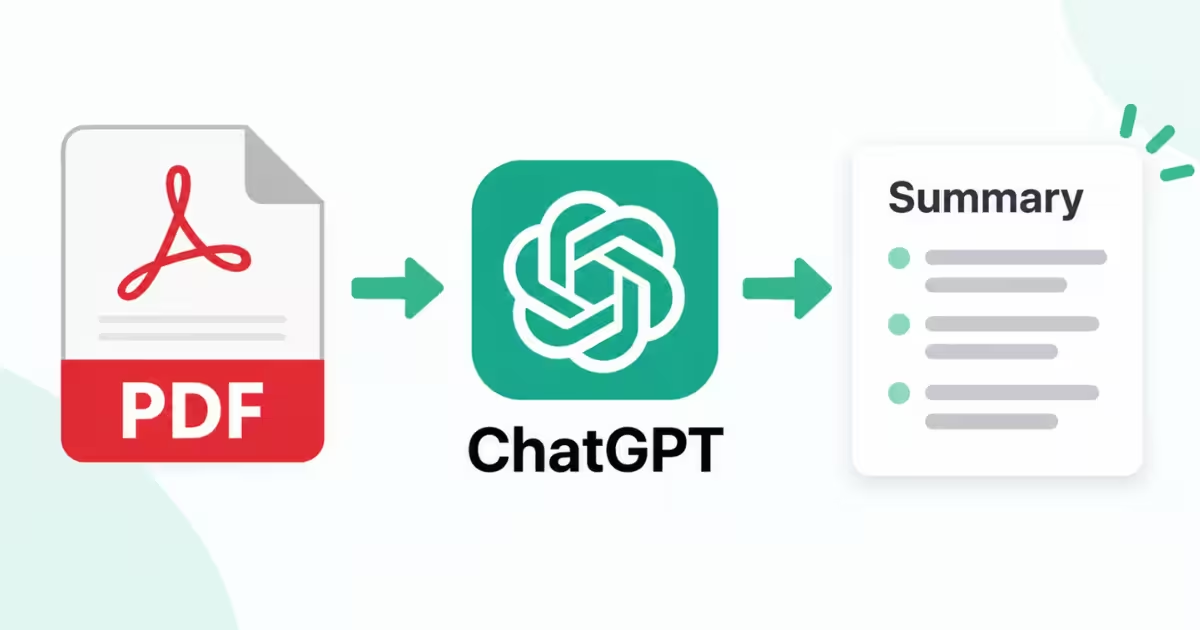
Long PDFs can hide the information you actually need among dozens or hundreds of pages. ChatGPT can help you pull out the useful parts by creating summaries, explaining sections, finding details, and organizing information from an uploaded document.
You only need to upload the PDF and tell ChatGPT what kind of summary you want.
For example, you can request a 100-word overview, a chapter-by-chapter breakdown, study notes, or a summary that focuses only on the findings in a research paper.
This guide explains how to summarize a PDF with ChatGPT, useful prompts to try, ways to handle large documents, and what to check when the summary doesn’t look right.
Can ChatGPT Summarize a PDF?
Yes. ChatGPT supports PDF uploads and can work with information from uploaded documents. OpenAI lists summarization, extraction, and document analysis among the tasks that can be performed with uploaded files.
You can use this feature with many types of documents, including:
- Research papers
- School assignments
- Business reports
- Study material
- Product documentation
- Project reports
- Articles
- Manuals
- Resumes
- Reference documents
The result depends on the instructions you provide. A simple request produces a general overview, while a detailed prompt can tell ChatGPT which sections, facts, or conclusions deserve attention.
How to Summarize a PDF With ChatGPT
You can summarize an uploaded PDF in a few steps.
Step 1: Open ChatGPT
Open ChatGPT in your browser or supported app and start a conversation.
If you’re working on a particular project, starting a separate conversation can make it easier to keep the document and related questions together.
Step 2: Upload the PDF
Open the attachment or tools menu next to the message box.
Select the option to add a file, then choose the PDF from your device.
OpenAI’s current file guide describes uploading a document through the file option and then giving ChatGPT instructions about the task.
Wait until the file finishes uploading before sending your request.
Step 3: Give ChatGPT a Clear Instruction
Now explain what you want from the document.
For example:
Summarize this PDF in 10 bullet points. Focus on the main findings, important facts, and conclusion.
You can also specify the audience:
Explain this PDF to a beginner and avoid unnecessary technical language.
Or set a length:
Summarize this report in approximately 300 words.
Step 4: Refine the Result
Your first summary may not have the exact level of detail you need.
Instead of uploading the document again, ask a follow-up question.
For example:
Make the summary shorter and keep only the five most important points.
Or:
Expand the section about the research findings and include the evidence mentioned in the PDF.
You can continue asking questions about the uploaded document within the conversation.
How to Write a Good PDF Summary Prompt
The quality of the request matters.
A vague instruction such as:
Summarize this.
doesn’t tell ChatGPT what information you consider important.
A more specific prompt would be:
Summarize this research paper in 500 words. Explain the research question, methodology, major findings, limitations, and conclusion. Use simple language and separate each section with a heading.
This gives ChatGPT a clear structure to follow.
When writing your prompt, consider specifying:
- Desired length
- Intended reader
- Important sections
- Information to include
- Information to leave out
- Preferred format
You don’t need to include all of these every time. Use the ones that matter for your document.
15 Prompts for Summarizing a PDF With ChatGPT
These prompts cover different types of PDF summaries.
1. Quick Overview
Give me a short overview of this PDF. Include the main subject, key points, and conclusion.
2. Bullet-Point Summary
Summarize this document in 10 bullet points. Keep only the information that is important for understanding the document.
3. Beginner-Friendly Summary
Explain the main ideas in this PDF for someone who has never studied this subject before. Define technical terms when necessary.
4. Detailed Summary
Create a detailed summary of this document. Cover its purpose, main arguments, evidence, findings, limitations, and conclusion.
5. Chapter Summary
Summarize each chapter separately. Give the main idea of each chapter followed by three important points.
6. Research Paper Summary
Analyze this research paper and organize the summary under these headings: research question, methodology, findings, limitations, and conclusion.
7. Study Notes
Convert this PDF into study notes. Include important concepts, definitions, examples, and facts that are useful for revision.
8. Exam Revision
Create revision notes from this PDF. Focus on definitions, important concepts, dates, formulas, and facts that could be useful for an exam.
9. Key Findings
Identify the five most important findings in this PDF. For each finding, explain the evidence provided in the document.
10. Executive Summary
Create an executive summary of this report. Focus on the findings, recommendations, risks, and decisions that require attention.
11. Presentation Summary
Turn this PDF into a 10-slide presentation outline. Give each slide a title and the main points that should appear on it.
12. Extract Important Numbers
Find the important statistics, percentages, measurements, and other numbers in this document. Explain what each number refers to.
13. Summarize Recommendations
Find all recommendations made in this document. Summarize each recommendation and mention the section where it appears.
14. One-Paragraph Summary
Summarize the entire PDF in one paragraph. Include its purpose, most important finding, and conclusion.
15. Evidence-Based Summary
Summarize the main claims in this PDF and identify the sections that provide evidence for each claim.
How to Summarize a Specific Part of a PDF
You don’t have to summarize the entire document.
Suppose you have a 150-page report but only need information from one chapter. Tell ChatGPT exactly where to focus.
For example:
Summarize Chapter 6 in 300 words. Focus on the findings and recommendations.
You can also refer to a heading:
Explain the section titled “Research Findings” and list the five most important points.
This approach is useful when the document contains several topics that aren’t relevant to your current task.
Summarize a Page Range
If you know the pages you need, mention them in your prompt.
Summarize pages 30 to 45 and focus on the author’s main arguments.
You can then ask follow-up questions about those pages.
Which claims in these pages have supporting evidence?
When the PDF uses printed page numbers that differ from the PDF viewer’s page numbers, referring to the section title can make your request clearer.
How to Summarize a Research Paper With ChatGPT
Research papers usually contain several sections that serve different purposes.
A useful summary can separate:
- Research question
- Background
- Method
- Results
- Limitations
- Conclusion
Try this prompt:
Summarize this research paper for a college student. Explain the research question, study method, sample, main findings, limitations, and conclusion. Keep the author’s findings separate from your own interpretation.
That last instruction is useful when you need an objective summary of what the paper actually says.
You can also ask:
Identify the conclusions made by the researchers and distinguish them from information that is only discussed as a possibility.
How to Summarize a PDF for Studying
A long chapter can be easier to review after you turn it into structured notes.
Upload the document and try:
Turn this PDF into study notes. Include important definitions, key concepts, examples, and facts. Organize the notes by topic.
After that, you can create practice material from the same document:
Write 20 practice questions based only on this PDF. Put the answers in a separate section.
You could also ask for flashcards:
Create 25 flashcards from this document. Use the key concept as the question and the explanation as the answer.
This gives you different ways to review the same material.
How to Make a PDF Summary Shorter
Sometimes you need a quick overview rather than a detailed explanation.
You can ask ChatGPT to reduce an existing summary.
For example:
Reduce this summary to 150 words while keeping the main findings and conclusion.
Or:
Turn this summary into five bullet points. Remove examples and secondary details.
You can also set a specific purpose:
Rewrite this summary so I can understand the main point of the report in under two minutes.
How to Get a More Detailed PDF Summary
If the initial answer leaves out information you need, ask for a deeper explanation of that specific area.
For example:
Expand the findings section and include the important evidence and examples mentioned in the PDF.
You can also request a structured analysis:
Break this document into purpose, main arguments, evidence, findings, limitations, and recommendations. Explain each section separately.
This gives you control over how much information ChatGPT includes.
Can ChatGPT Summarize a Large PDF?
Yes, within the file and usage limits that apply to your account.
OpenAI currently lists a 512 MB maximum size per uploaded file and a 2 million token limit for text and document files. Upload allowances can also vary by account and plan.
A document can still be difficult to process even when it falls below those limits. A very long report with complicated formatting may require a more focused approach.
If you don’t get a useful summary from a large document, try working through individual chapters or sections.
For example:
Summarize Chapter 1 first. After that, I’ll ask you to summarize Chapter 2.
This can also make it easier to review the output as you go.
Can ChatGPT Summarize a Scanned PDF?
Scanned PDFs require some extra care.
A normal digital PDF usually contains selectable text. A scanned document may instead contain photographs or scanned images of its pages.
The way ChatGPT handles visual information depends on the capabilities available to your account. OpenAI’s documentation notes that Enterprise supports visual retrieval for PDFs, while document retrieval on other plans can differ.
If ChatGPT misses information that you can clearly see on a scanned page, try providing the relevant page as an image or using a version of the document that contains selectable text.
How to Check a ChatGPT PDF Summary
A summary should make a document easier to understand, but you should still check important information against the original source.
This matters particularly for:
- Academic research
- Financial reports
- Legal documents
- Medical information
- Business decisions
- Technical documentation
One useful follow-up prompt is:
For each major point in this summary, identify the section of the PDF that supports it.
You can also ask:
Review this summary against the PDF and identify any statements that may be missing context.
Then check those points yourself.
Common PDF Summarization Problems
The Summary Is Too Vague
Give ChatGPT a clearer focus.
Instead of:
Summarize this PDF.
Try:
Summarize this report in 400 words. Focus on the findings, supporting evidence, limitations, and recommendations.
Important Details Are Missing
Ask ChatGPT to look again for specific information.
Review the PDF again and add important statistics, dates, and findings that were left out of the previous summary.
The Summary Is Too Long
Give it a target length.
Rewrite the summary in 200 words while keeping the main findings and conclusion.
ChatGPT Focuses on the Wrong Section
Tell it exactly where to look.
Recheck the section titled “Results” and summarize only the findings discussed there.
The PDF Contains Scanned Pages
Check whether the important information exists as selectable text.
If it does not, provide the relevant page in a format that ChatGPT can process.
Can ChatGPT Summarize Multiple PDFs?
Yes, you can work with multiple uploaded documents within the limits available to your account.
For example, you could upload three research papers and ask:
Compare these three papers and summarize their research questions, methods, findings, and limitations in a table.
You can also ask:
Combine the main findings from these reports into one summary. Clearly identify areas where the documents disagree.
This can help when you are reviewing several sources about the same subject.
Can You Summarize a PDF With ChatGPT for Free?
ChatGPT supports file uploads for Free users, although usage limits are stricter than on some paid plans.
OpenAI currently states that Free users have a limited number of file uploads per day.
If your account reaches its limit, you may need to wait until the allowance resets or use the file features available under your current plan.
Because OpenAI can change usage limits, check the current limits shown in your account when necessary.
Is It Safe to Upload a PDF to ChatGPT?
Look through a document before uploading it.
A PDF may contain information that you would not normally share with an online service, such as:
- Personal information
- Financial records
- Private correspondence
- Business documents
- Academic records
- Passwords or account details
Avoid uploading confidential information unless you have checked the privacy and data controls that apply to your account and understand how the service handles uploaded content.
For sensitive documents, consider whether you need to upload the entire file. Sometimes you only need one section, and removing unnecessary private information can reduce the amount of sensitive data being processed.
Final Thoughts
A long PDF doesn’t always need to be read from the first page to the last before you can find the information you need. ChatGPT can help you create a shorter version of the document, focus on a particular section, or turn the material into a format that is easier to study.
Start by uploading the PDF and giving ChatGPT a specific instruction. If the first response isn’t useful, adjust the length, focus, audience, or format instead of repeating the same prompt.
For important documents, treat the summary as a convenient starting point and check key details against the original PDF. That simple step can help you catch missing context or errors before using the information.
Frequently Asked Questions:
Can ChatGPT summarize a PDF?
Yes. Upload the PDF to a ChatGPT conversation and ask it to create a summary of the document or a specific section.
How do I summarize a PDF with ChatGPT?
Upload the PDF, then give ChatGPT a clear instruction describing the summary you want. You can specify the length, format, audience, and sections that matter to you.
Can ChatGPT summarize a 100-page PDF?
It can work with large documents within the applicable file and token limits. For a long PDF, asking for summaries of individual chapters or sections can make the process easier.
Can ChatGPT summarize a research paper?
Yes. You can ask ChatGPT to organize a research-paper summary around the research question, methodology, findings, limitations, and conclusion.
Can ChatGPT create study notes from a PDF?
Yes. You can ask it to turn an uploaded PDF into study notes, flashcards, definitions, or practice questions.
How large can a PDF be in ChatGPT?
OpenAI currently lists a 512 MB limit per uploaded file and a 2 million token limit for text and document files. Other upload restrictions can apply depending on the account and plan.