
Reading a long PDF can take a lot of time, especially when you only need a few details from it. ChatGPT can work with uploaded PDF files, which means you can ask questions about a document, create a summary, find specific information, or turn its contents into study material.
The process is simple. Start a ChatGPT conversation, attach the PDF, and describe what you want to do with it.
This guide shows you how to upload a PDF to ChatGPT and how to get useful answers from the file after it has been uploaded.
Can You Upload a PDF to ChatGPT?
Yes. PDF is one of the file formats supported by ChatGPT.
OpenAI’s current file guidance says you can upload files directly to a conversation and then ask ChatGPT to analyze, summarize, edit, or extract information from them. PDF is among the supported document formats.
For example, you could upload:
- A research paper
- A school textbook chapter
- A business report
- A product manual
- A resume
- A project document
- A study guide
- An article
- A company report
The useful part comes after the upload. You can give ChatGPT a specific task instead of manually searching through every page.
How to Upload a PDF to ChatGPT
You can upload a PDF directly from the ChatGPT message area.
Step 1: Open ChatGPT
Open ChatGPT and start a new conversation.
You can upload the PDF before writing your question. If you already know what you want to ask, you can also prepare the prompt first.
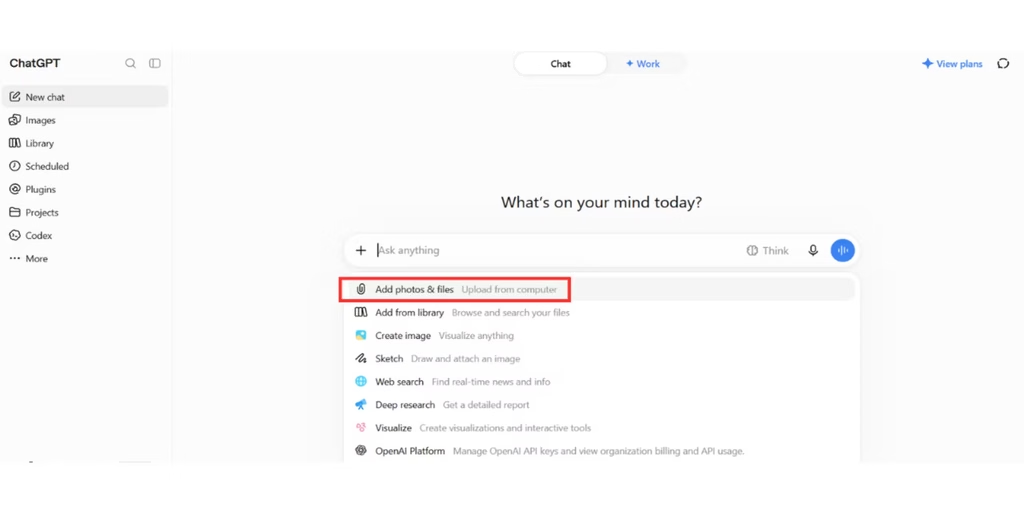
Step 2: Open the File Menu
Look at the area where you normally type your message.
Open the tools or attachment menu and select the option to add a file. OpenAI’s current instructions refer to this as “Add photos or files.” The exact appearance of the interface can change as ChatGPT is updated.
Step 3: Choose Your PDF
Find the PDF on your computer or device and select it.
Wait until the upload has finished. The document should then appear as an attachment in the conversation.
Step 4: Write Your Prompt
Now tell ChatGPT what you want it to do with the PDF.
For example:
Summarize this PDF in 10 bullet points and include the main findings.
You could also ask:
Find the section that discusses artificial intelligence and explain it in simple language.
OpenAI recommends giving the uploaded file a specific task or question rather than simply attaching it without instructions.
What Can You Ask ChatGPT to Do With a PDF?
A PDF upload can be useful for much more than getting a short summary.
Here are several practical ways to use it.
Summarize a Long PDF
If you have a lengthy report, ask ChatGPT to condense the important information.
Try this prompt:
Summarize this PDF in 15 bullet points. Focus on the main ideas, important facts, findings, and conclusions.
For a book or long report, you can request a section-by-section summary:
Summarize each chapter separately. Give me the main idea and three important points from each chapter.
This gives you a quick overview before you decide which sections deserve a closer read.
Ask Questions About the Document
You can use the uploaded PDF as the source for questions.
For example:
According to the PDF, what are the main causes discussed in Chapter 2?
Or:
What recommendations does the author make in the final section?
Specific questions are useful when you need one detail from a large document.
Find Specific Information
You can ask ChatGPT to locate information that appears throughout the document.
For example:
Find every section that mentions ChatGPT and summarize what the document says about it.
You can also request specific details:
Extract all the dates mentioned in this document and organize them chronologically.
OpenAI’s file documentation lists extracting sections, finding mentions of a topic, and extracting document information among supported file tasks.
Explain Difficult Content
A technical PDF may contain terminology that is difficult to understand on the first read.
Upload it and tell ChatGPT what level of explanation you need.
Try:
Explain the section about neural networks as if I am a beginner. Use a simple example for each major concept.
You can also ask it to explain individual terms:
Identify the five most important technical terms in this chapter and explain each one in simple English.
Turn a PDF Into Study Notes
Students can use an uploaded document to create a more organized set of notes.
For example:
Turn this chapter into study notes. Include definitions, key concepts, important examples, and points I should remember for an exam.
You can take this a step further:
Create 20 questions based only on this PDF. Put the answers after the questions.
That gives you a basic practice test based on the material you uploaded.
Extract Information Into a Table
A table can make information from a long document easier to scan.
For example:
Find all the companies mentioned in this report and create a table with the company name, industry, and information given about each company.
You can use the same approach for dates, people, recommendations, statistics, or other information in the document.
Compare Multiple PDFs
ChatGPT can also work with multiple uploaded files when your account’s current upload limits allow it.
For example, you could upload two versions of a report and ask:
Compare these two documents. Show the differences in their recommendations, conclusions, and important figures.
This can help when reviewing different versions of:
- Research papers
- Business reports
- Proposals
- Study materials
- Product documents
- Project plans
Tell ChatGPT what you want compared so the response stays focused.
10 Prompts to Use After Uploading a PDF
The right prompt can make a big difference in the usefulness of the response.
1. Summarize the document
Give me a concise summary of this PDF. Include the main ideas, important facts, and final conclusions.
2. Create study notes
Turn this PDF into study notes with headings, definitions, key concepts, and examples.
3. Find a topic
Find every section that discusses [topic] and summarize the relevant information.
4. Explain a difficult chapter
Explain Chapter 4 in simple language. Assume I have no prior knowledge of the subject.
5. Create questions
Create 20 questions based only on this PDF. Include the answers at the end.
6. Extract important dates
Find all important dates in this PDF and organize them in chronological order.
7. Extract recommendations
List all recommendations made in this document and explain the reason given for each one.
8. Create a presentation outline
Turn this report into a 10-slide presentation outline. Give each slide a title and three supporting points.
9. Find supporting information
For each conclusion in your summary, identify the relevant section of the uploaded PDF that supports it.
10. Simplify the document
Explain the main ideas in this PDF using simple language while keeping the original meaning.
How to Get Better Answers From ChatGPT
Your prompt should tell ChatGPT what you actually need.
Compare these two requests:
Summarize this PDF.
and:
Summarize this research paper for a college student. Organize the answer into five sections: research question, methodology, findings, limitations, and conclusion.
The second request gives ChatGPT a clear structure to follow.
Tell It Who the Answer Is For
The same document can be explained in different ways.
A beginner may need basic definitions and examples. A professional may want a shorter summary focused on findings and recommendations.
Try:
Explain this document for someone who has no background in this subject.
Specify the Part You Need
You don’t always need an analysis of the entire PDF.
If you only care about one section, say so.
Analyze the section titled “Results” and explain the five most important findings.
This can be particularly useful with long documents.
Request a Specific Format
Tell ChatGPT how you want the information organized.
You can request:
- Bullet points
- Tables
- Study notes
- FAQs
- Checklists
- Presentation outlines
- Questions and answers
For example:
Extract the main recommendations and put them into a table with three columns: recommendation, supporting evidence, and section of the PDF.
What Is the Maximum PDF Size for ChatGPT?
OpenAI currently lists a 512 MB maximum size for each file uploaded to a ChatGPT conversation.
Text and document files also have a 2 million token limit per file. Separate usage limits apply to file uploads, and those limits can depend on the account or plan. OpenAI’s current documentation states that Free users can upload up to three files per day.
A file can meet the technical size limit and still be difficult to work with if it contains a complicated structure or a very large amount of information.
For a particularly large document, focusing your prompt on one section at a time can make the task easier to manage.
Can ChatGPT Read a Scanned PDF?
This depends on how the PDF is processed and what capabilities are available with your ChatGPT plan.
A normal text-based PDF contains selectable text. A scanned PDF may contain pages saved as images instead.
That difference matters because information inside an image may require visual processing to interpret correctly.
If ChatGPT cannot find information that you can clearly see in a scanned page, try uploading the relevant page as an image or provide the information as text.
For important documents, check the response against the original page rather than assuming that every detail was extracted correctly.
What If ChatGPT Gives an Incorrect Answer From the PDF?
An uploaded document gives ChatGPT additional context, but it does not guarantee that every response will be perfect.
If an answer looks questionable, ask ChatGPT to show where the information came from.
For example:
Which section of the uploaded PDF supports this answer?
You can also narrow the request:
Use only information from pages 20 to 25 when answering this question.
Then compare the response with the original document.
This is especially important when working with legal documents, financial reports, academic research, medical information, or other material where an incorrect detail could cause problems.
Can You Upload More Than One PDF to ChatGPT?
Yes, ChatGPT supports working with multiple files, subject to the limits that apply to your account and conversation.
For example, you could upload:
- A research paper and its appendix
- Two versions of a report
- Several study chapters
- A proposal and a requirements document
Then ask ChatGPT to compare or combine information from them.
OpenAI also recommends splitting very large files or focusing on specific sections when working with large documents.
Can You Upload a PDF to ChatGPT for Free?
ChatGPT supports file uploads on accounts that have access to the feature, including the Free plan, although Free users have stricter usage limits.
OpenAI currently lists three file uploads per day for Free users. Other plans can have different limits.
If you receive an upload-limit message, check the limits shown for your account because OpenAI can change usage allowances over time.
Is It Safe to Upload a PDF to ChatGPT?
Check the contents of a PDF before uploading it.
A document might contain private information such as:
- Personal details
- Financial records
- Business information
- Academic records
- Private messages
- Account credentials
If a document contains information that you should not share with an online service, don’t upload it without first reviewing the relevant privacy and data-control settings.
For sensitive documents, you should also consider whether ChatGPT is an appropriate place to process the information in the first place.
Common Problems When Uploading a PDF
The PDF Won’t Upload
Check the file size first. Each uploaded file has a 512 MB limit, and additional usage limits may apply.
If the file is within the limit but still fails, try starting a new conversation or uploading a smaller version of the document.
ChatGPT Cannot Find Text in the PDF
Check whether the PDF contains selectable text.
If it is a scanned document, the words may exist as images rather than text. In that case, upload the relevant page as an image if needed.
The Answer Misses Important Details
Try asking about a specific page, chapter, heading, or subject.
For example:
Look specifically at the section titled “Methodology” and list the three research methods used.
A narrower request gives the conversation a clearer target.
The Summary Is Too General
Tell ChatGPT what information should receive more attention.
Instead of:
Summarize this report.
Try:
Summarize this report in 500 words. Focus on the findings, statistics, limitations, and recommendations.
Useful PDF Workflows for Students and Professionals
Once you know how to upload a PDF, you can use the feature for several everyday tasks.
Students
Upload course material and ask ChatGPT to create study notes, explain difficult concepts, or generate practice questions.
Researchers
Use an uploaded paper to identify research methods, summarize findings, locate specific references, or compare papers.
Professionals
Upload a report and ask for a summary, a list of action items, or a presentation outline.
Job Seekers
You can upload a resume and ask ChatGPT to identify unclear wording, organize sections, or compare the resume with a job description you provide.
The quality of the output depends on the document and the instructions you provide, so review important results before using them.
Final Thoughts
Uploading a PDF to ChatGPT can save time when you need to find, understand, or organize information from a document.
The basic workflow takes only a few steps: attach the PDF, describe the task, and refine the request if you need a different result.
A specific prompt will usually give you more useful information than a vague request. Ask for a summary, specific details, study notes, a comparison, or a structured table based on what you actually need.
For large or scanned documents, pay attention to how the file is structured and check important answers against the original PDF. That extra check is worth doing whenever the information has real consequences.
Frequently Asked Questions
How do I upload a PDF to ChatGPT?
Open a ChatGPT conversation, select the attachment or tools option, choose the file-upload option, and select your PDF. After the upload finishes, enter the question or task you want ChatGPT to handle.
Can ChatGPT summarize a PDF?
Yes. You can ask ChatGPT to summarize an entire PDF or focus on a particular chapter, section, or topic.
Can ChatGPT answer questions from a PDF?
Yes. After uploading the document, you can ask questions about information contained in it.
What is the PDF size limit in ChatGPT?
OpenAI currently lists a 512 MB limit for each uploaded file. Text and document files also have a 2 million token limit per file.
Can I upload multiple PDFs to ChatGPT?
Yes, multiple files can be uploaded within the limits that apply to your account and conversation.
Can ChatGPT compare two PDFs?
Yes. Upload both documents and specify which information you want compared.
Can ChatGPT read scanned PDFs?
Scanned PDFs can be more difficult to process because their text may exist as images. If the required information is not recognized, try providing the relevant page as an image or using a text-based version of the document.
Can I upload a PDF to ChatGPT for free?
Free users can upload files, but they have stricter usage limits. OpenAI currently lists three file uploads per day for Free users.
1 thought on “How to Upload a PDF to ChatGPT: Complete Guide”